Getting started
The setup wizard drafts your trade brief; then work through Getting started: site check, Google, inquiries, your first content.
The first time you open the back office, "Get started with your trade assistant" walks you through two steps:
- Enter your website: type your company website and click "Next". If creght is connected, you can also pick one of your Creght sites from the list; the site you pick is added to Sites & accounts automatically.
With a model set up, the assistant reads the site and drafts your trade brief. The page shows "Analyzing website"; "View conversation" shows what it's doing.
- Review your trade brief: check "Main business (required)" and "Customer types (required)". Cooperation, core keywords and everything under "More details (optional)" (project name, positioning, company role, key regions, buyer concerns, core strengths) can stay empty. Click "Start operations" to open the Operations overview.
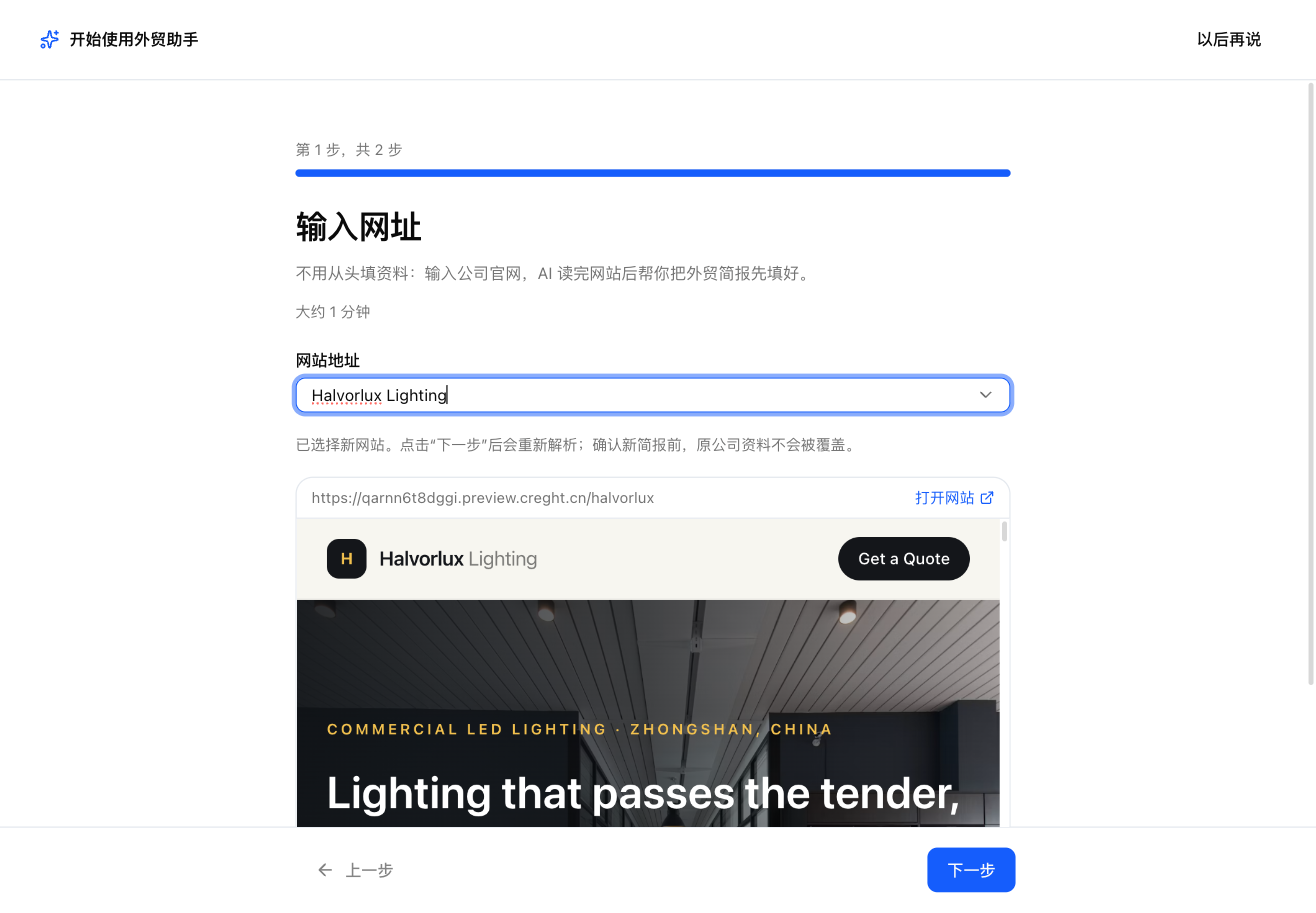
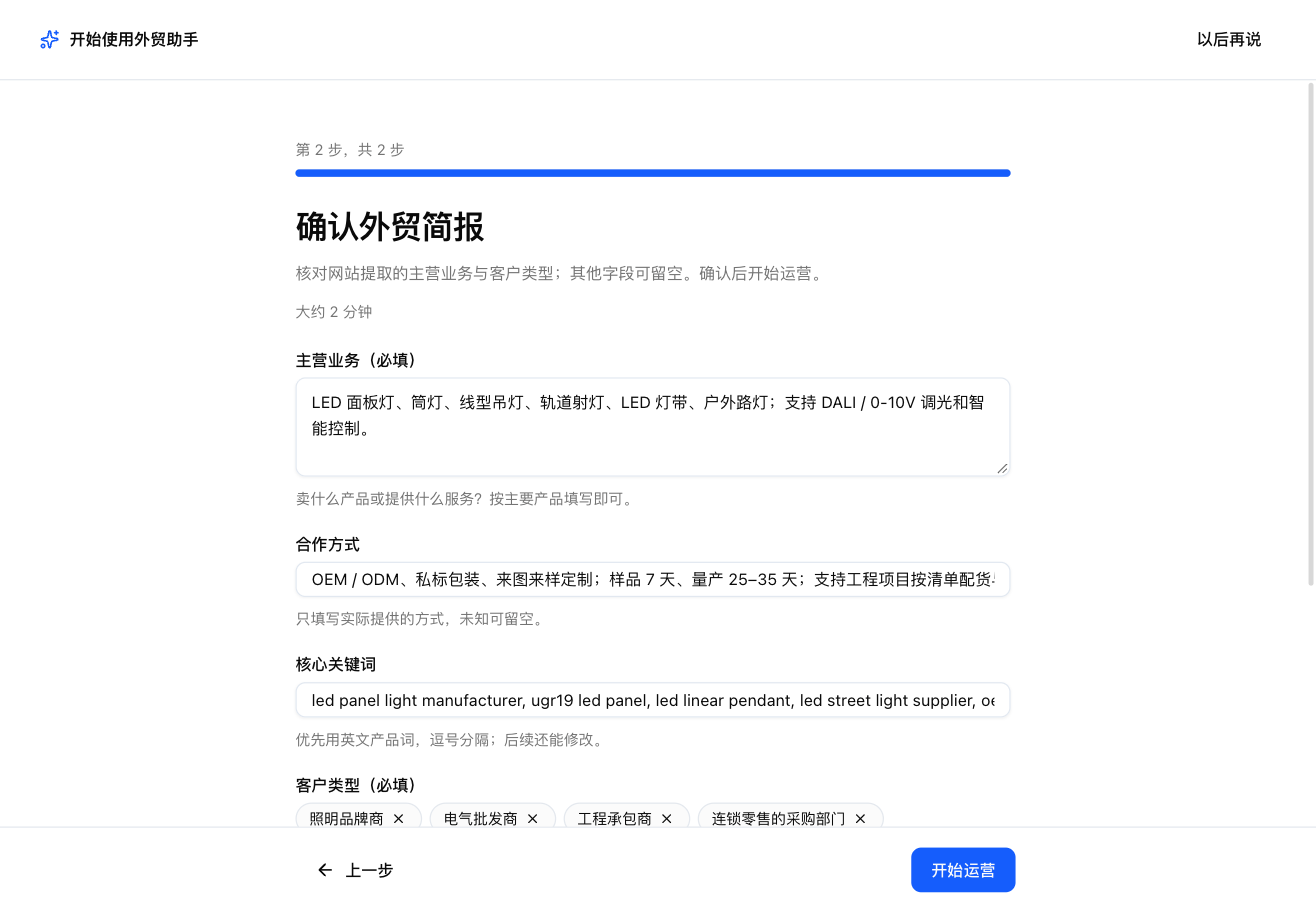
- With no model set up, the wizard says no AI model is available and you fill it in yourself. "Set up a model" opens Annulo's Settings → Models; see "Settings and keys".
- Not now? Click "Later". You can come back with "Open setup wizard" in Getting started.
- Everything in the brief is saved under Company & products → Company profile, where you can edit it any time.
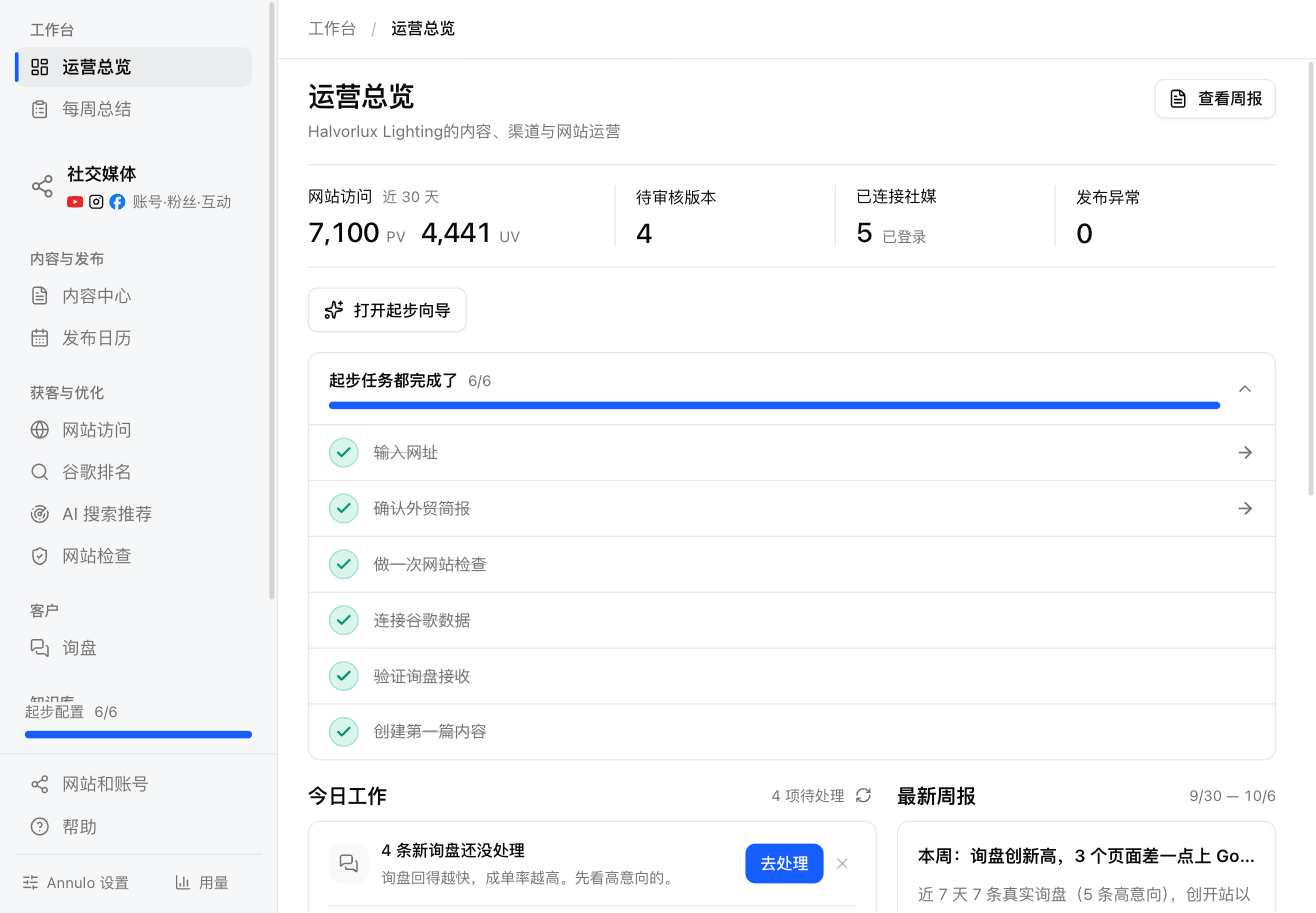
At the bottom of the sidebar, "Getting started" shows your progress (e.g. 2/6). Click it to open the checklist on the Operations overview:
| Step | Done when |
|---|---|
| Enter your website | A site is selected, or Sites & accounts has a site |
| Review your trade brief | Main business and customer types are filled in |
| Run a site check | There is a check result; see "Site check" |
| Connect Google search data | Google Search Console data has synced; see "Google rankings" |
| Verify inquiry delivery | Inquiries have synced once; see "Inquiries" |
| Create your first content draft | There is an article, even a draft |
Progress comes from your data; nothing to tick by hand. "Skip for now" anything you don't need.
If you typed a URL in the wizard instead of picking a Creght site (a WordPress site, for example), add the site in Sites & accounts so you can publish articles and receive inquiries; see "Sites & accounts".
Sites & accounts → "Add site or account", then under "Social accounts" pick X, LinkedIn, Facebook, Instagram, YouTube, Xiaohongshu, Douyin, Bilibili or Zhihu. A browser window opens for you to sign in. The login stays on this computer.
The assistant on the right of Annulo sees this project's data and back-office code. For example:
- "Which page brought in the most inquiries this week?"
- "Check the homepage and fix the serious issues first"
- "Add a daily visitors chart to the Operations overview"
Site changes go to preview first; going live is your call. See "The assistant".
Running another business (another brand or product line)? Create a new project in Annulo's Settings → Projects. Each project keeps its data, back-office pages and chats separate.