The assistant
What it does, what it won't do for you, how to have it change the back office, and using it from your phone.
The assistant on the right of Annulo sees this project's data, sites and accounts, and back-office code, and it can act on them.
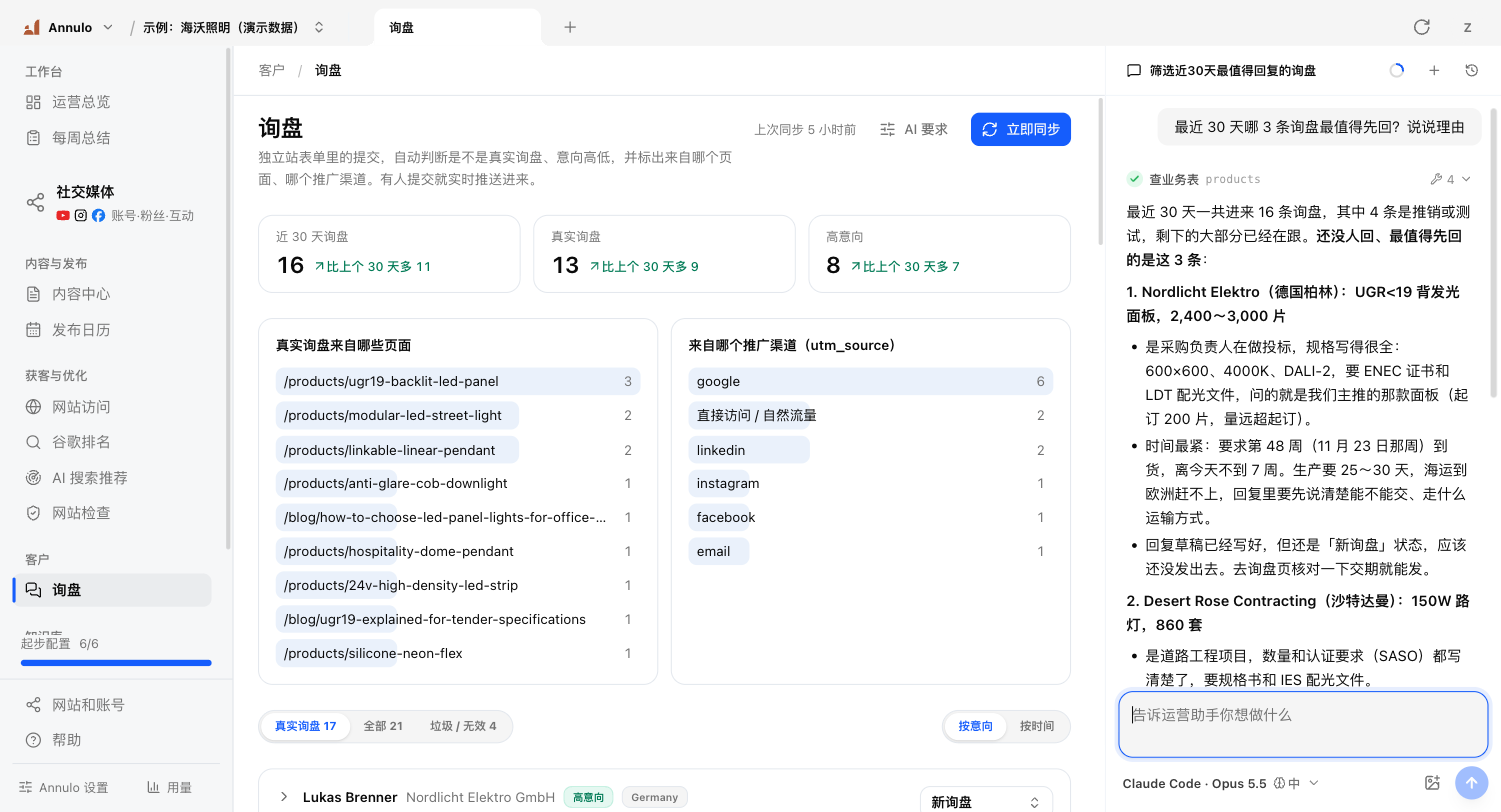
- Answers questions about your data, like "which page brought the most inquiries this week?" or "how many LinkedIn followers did we gain this month?", with a chart when useful;
- Suggests topics, writes articles, platform posts and inquiry reply drafts (you review all of them);
- Fixes sites: site-check issues, titles and descriptions, missing content, pushed to preview for you to check;
- Changes the back office itself: "add a daily visitors chart to the Operations overview", "add a field" (see below);
- Writes the weekly summary and explains how a number is calculated.
Many buttons run directly (site checks, AI search checks, syncs, publishing, collecting) without the assistant. Buttons that need the AI to read and think ("Suggest topics", "Write with AI", "Draft reply with AI", "Suggest title and description", "Hand to assistant"…) open a new conversation that runs in the background, visible on the right. The button turns into "In progress · View progress"; click it to open the conversation. The page refreshes when it's done. Next to these there's often "AI instructions": the rules it follows every time. Edit them freely; "Restore default" undoes your edits.
- Publish a site to production, unless you explicitly ask or click "Go live" yourself;
- Approve content for you; nothing unapproved gets posted;
- Send email for you;
- Delete content from a platform unless you explicitly ask;
- It can't read the values in Annulo's Settings → Keys, and won't put keys into code, tables or the chat.
Just say what you want. It edits the back-office code, and the back office on the left refreshes when the turn ends. Every change is recorded in the project's git history; if a step went wrong, tell it to "roll back that change". When a back-office page shows an error, "Ask the assistant to fix" appears at the top; the error is sent only when you click it. If the error is somewhere it didn't change this time, it asks you before touching it.
Some scheduled tasks hand a job to the assistant at the set time, like the weekly summary. Each run opens a new conversation titled "Scheduled: …". You're not there, so it doesn't stop to ask; it makes sensible assumptions and lists them at the end.
"Instructions for the assistant" in Annulo's Settings → Projects: your rules for the assistant in this project, like tone of replies or things it must not do. They go into its system prompt, win over the project's built-in notes, and aren't touched by template upgrades. Changes apply from the next new conversation.
For an online project (connected to creght), you can open the back office on a phone or another computer (the address is in Annulo's Settings → Remote access) and sign in with your creght account:
- You can see all the data and edit articles and versions;
- Publishing, collecting, site checks and AI tasks run on your computer: Annulo must be open there with this project, and "Allow remote use of this computer" turned on in Settings → Remote access. The top of the page shows whether the computer is online;
- There's no assistant on the right on a phone; instead "Assistant" appears in the sidebar: send a message to the assistant on your computer and follow its progress there.