Content center: topics, articles, channel versions
Get topics, have AI write articles, then make a version per site and social account, review and publish or schedule.
Content & publishing → Content center in the sidebar, with two tabs: "Articles" and "Topics". An article is the master draft; for each site or social account you want to publish to, add a channel version and edit and publish it on its own.
The "Topics" tab. Topics come from:
- Suggest topics: the assistant suggests a batch from your company and product details and existing topics, without repeats;
- From search: queries people search on Google with no page of yours ranking, added on each Google sync and marked as from search;
- AI search: "Turn uncited into topics";
- Add manually: your own title and angle.
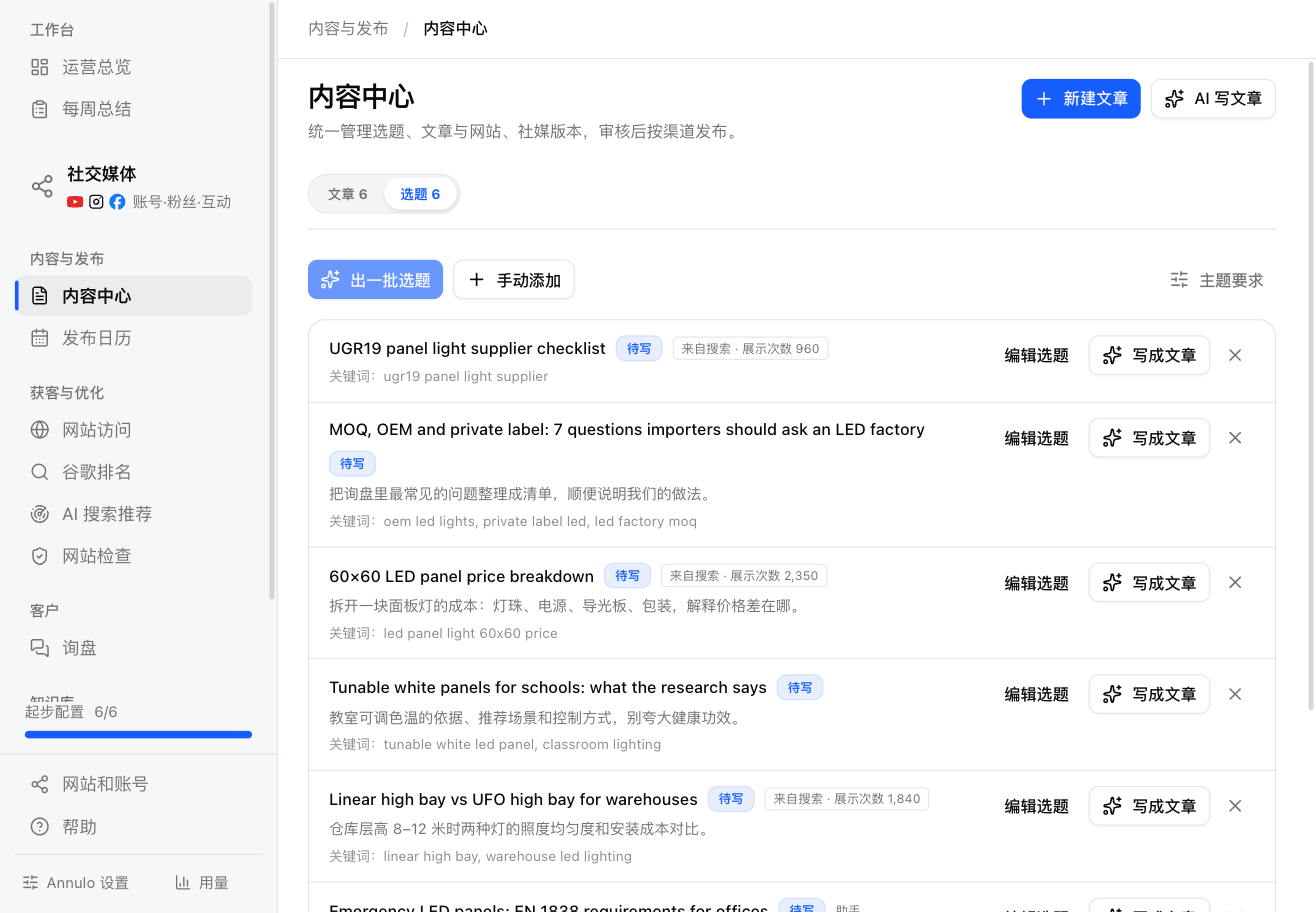
- Click a topic title or "Edit topic" to add the angle, target keywords, target buyers, the buyer question to answer, related products, outline, writing language, CTA and missing facts, then "Save and draft";
- "Write article" has the assistant write that one;
- Click "×" (Drop this topic) for ones you won't write; dropped topics can be restored from the written / dropped list below;
- "Topic instructions": what the assistant follows when suggesting topics, such as which kinds or how many at a time.
Three ways to start:
- "Write with AI": opens "Requirements for this article", prefilled with your default writing instructions; edits here apply to this article only. "Start writing" has the assistant pick the best topic from the pool and write it;
- "Write article" on a topic: writes that topic;
- "New article": enter a title or subject, then "Let AI write it" hands it to the AI, or "Save draft" creates an empty one for you to write.
While the assistant writes, the page says so; usually a few minutes. "View progress" shows each step. Finished articles are drafts under "Articles". Change the long-term writing style in "Writing instructions".
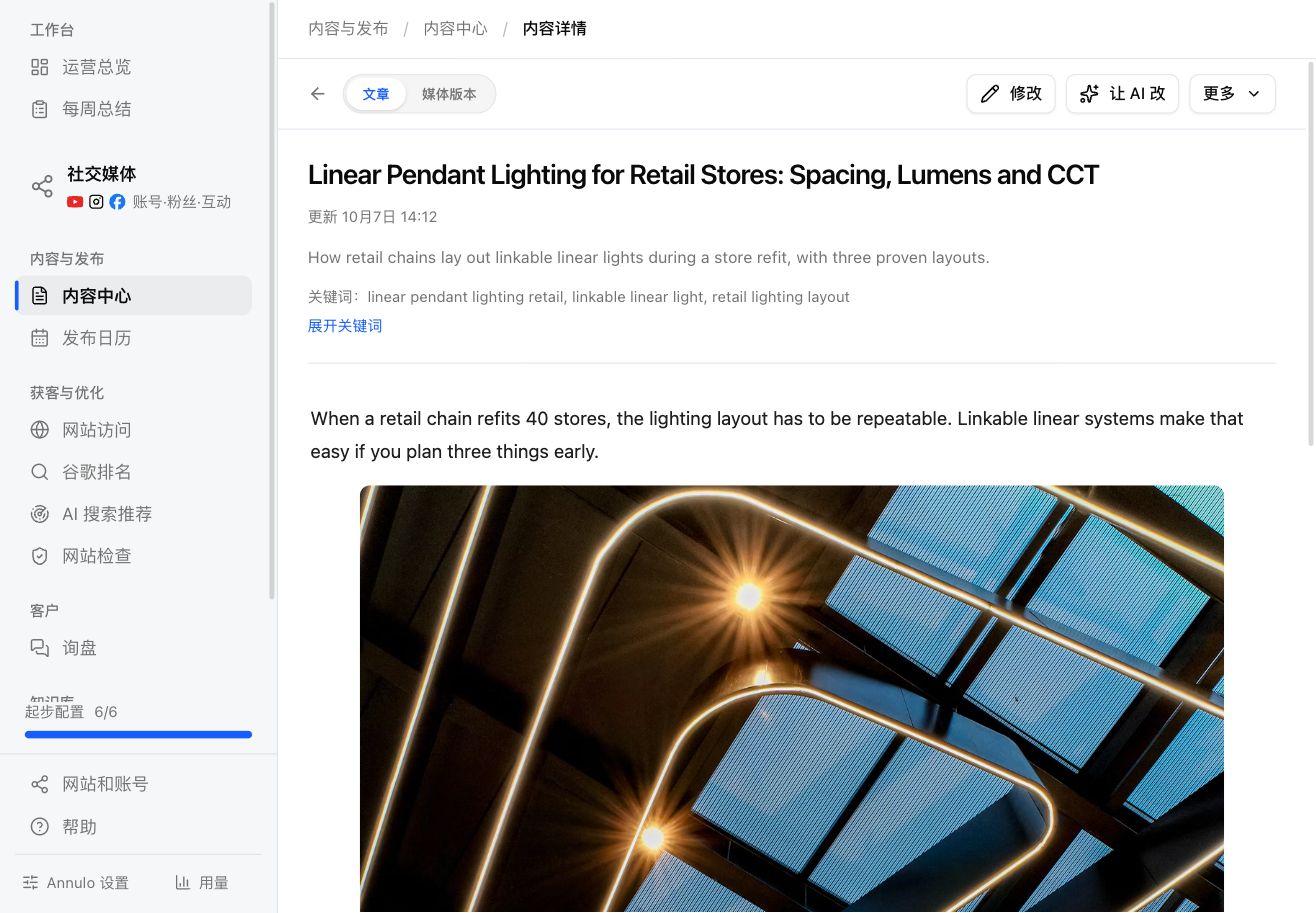
Open an article; the "Article" tab is the master draft:
- "Edit": title, summary and body. In the body you can add headings, lists and images ("Upload image", "From library", or paste and drag in; type / to insert a block), and pick a video;
- "Ask AI to revise": say what to change, then "Send to AI"; it only changes what you mention. "More → Revision instructions" are the rules it always follows;
- "More → Delete": articles that already have channel versions can't be deleted until you deal with the versions.
The "Channel versions" tab on an article: one article, edited and published per channel. Editing the master draft doesn't overwrite saved versions.
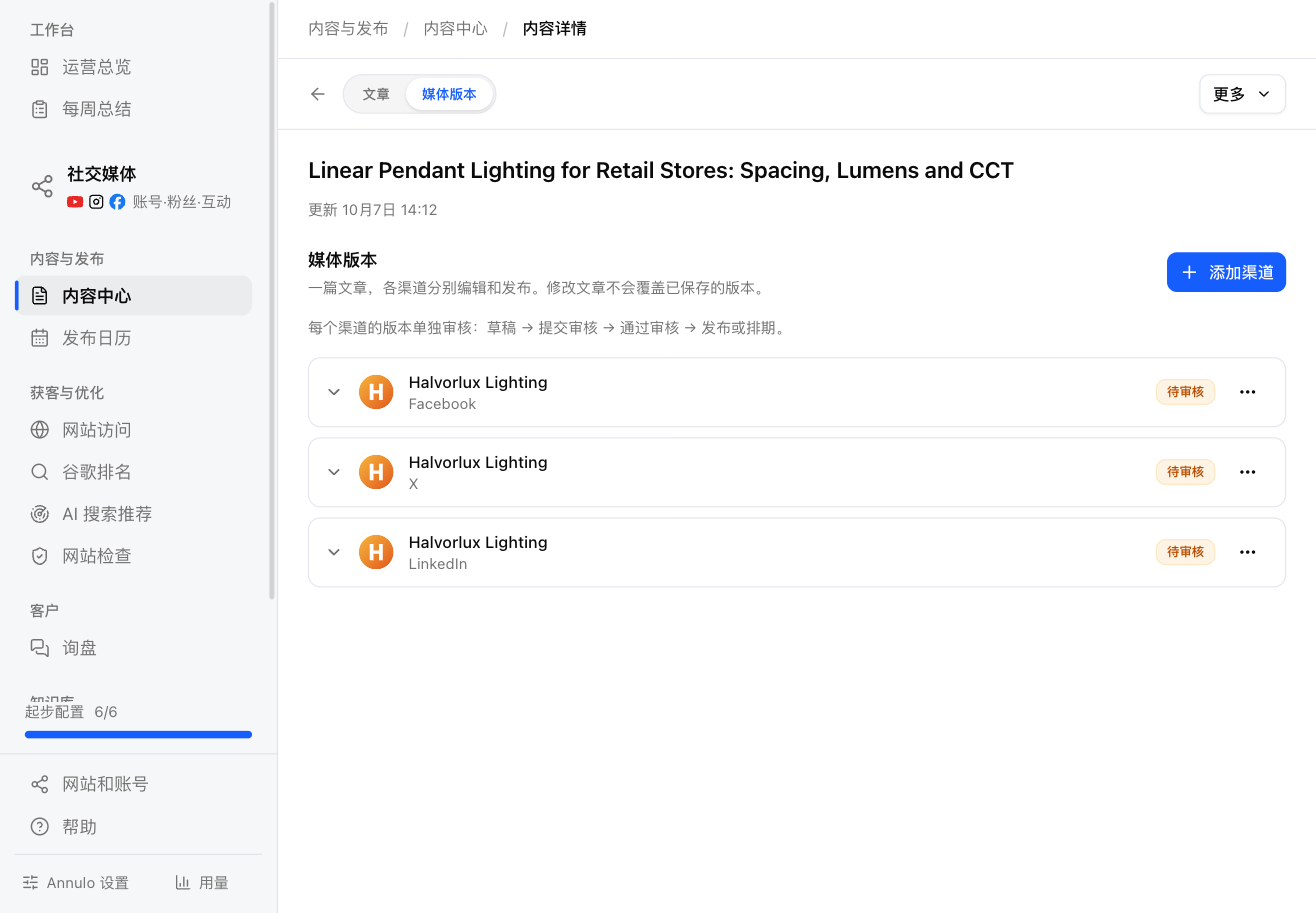
- Add channels: tick the sites and accounts to publish to (several at once). Site versions are copied from the article; for social accounts choose "Blank", or "AI writes N social versions" to have the assistant write one per account for its platform and positioning.
- Site versions: edit the title, summary, body, keywords and video, "Save", then "Publish to 1 selected sites"; it goes live immediately. Publishing again updates it ("Update on site"). The first time for a site, click "Let AI set up publishing": the AI reads the site's article fields (and builds a blog if there isn't one), writes the mapping and test-publishes. After that you can publish directly.
- Social versions: draft → "Submit for review" → "Approve" → "Publish now" or "Schedule".
- "Submit for review" checks length, hashtags and images against the platform's rules first; fix anything flagged before submitting;
- Once approved, "Publish now", or pick a time and "Schedule"; Annulo publishes it on time (Annulo must be open). To edit a scheduled post, "Cancel schedule" first;
- Images: "Pick from library", drag to reorder. Video: "Pick a video from the library" or "Upload from this computer" (local videos stay on this computer, up to 8 GB, cleaned up after 90 days);
- The "⋯" on an account row: "Rewrite with AI" for another version, "New blank version", and that platform's "AI requirements".
- Publish in bulk: sends all approved social versions and set-up site versions at once, with a result for each.
- Published versions can't be edited; they show the latest views, likes and comments, and "View account data" opens Social media.
Social versions that aren't approved never go out, and the assistant won't approve for you. The first time a site version is published, it's added to Google rankings → Change reviews; after 17 days you see the search clicks it brought.
The "Articles" tab can search titles and summaries and filter by Draft or Published. Published articles list the sites and accounts they went to; click one to open that version.