Templates and upgrades
Start from a ready-made template; when it ships a new version, your project upgrades and keeps your changes.
Pick one when creating a project:
- Blank project and Creator studio: open source, at github.com/annulo/templates;
- Export assistant: when creght is connected;
- Your own git template: "Add a git template" and enter
<repo>#<directory>(leave out#<directory>if the template is the whole repo). Private repos use the credentials your git already has.
How each template works is in its own guide: Creator studio, Export assistant.
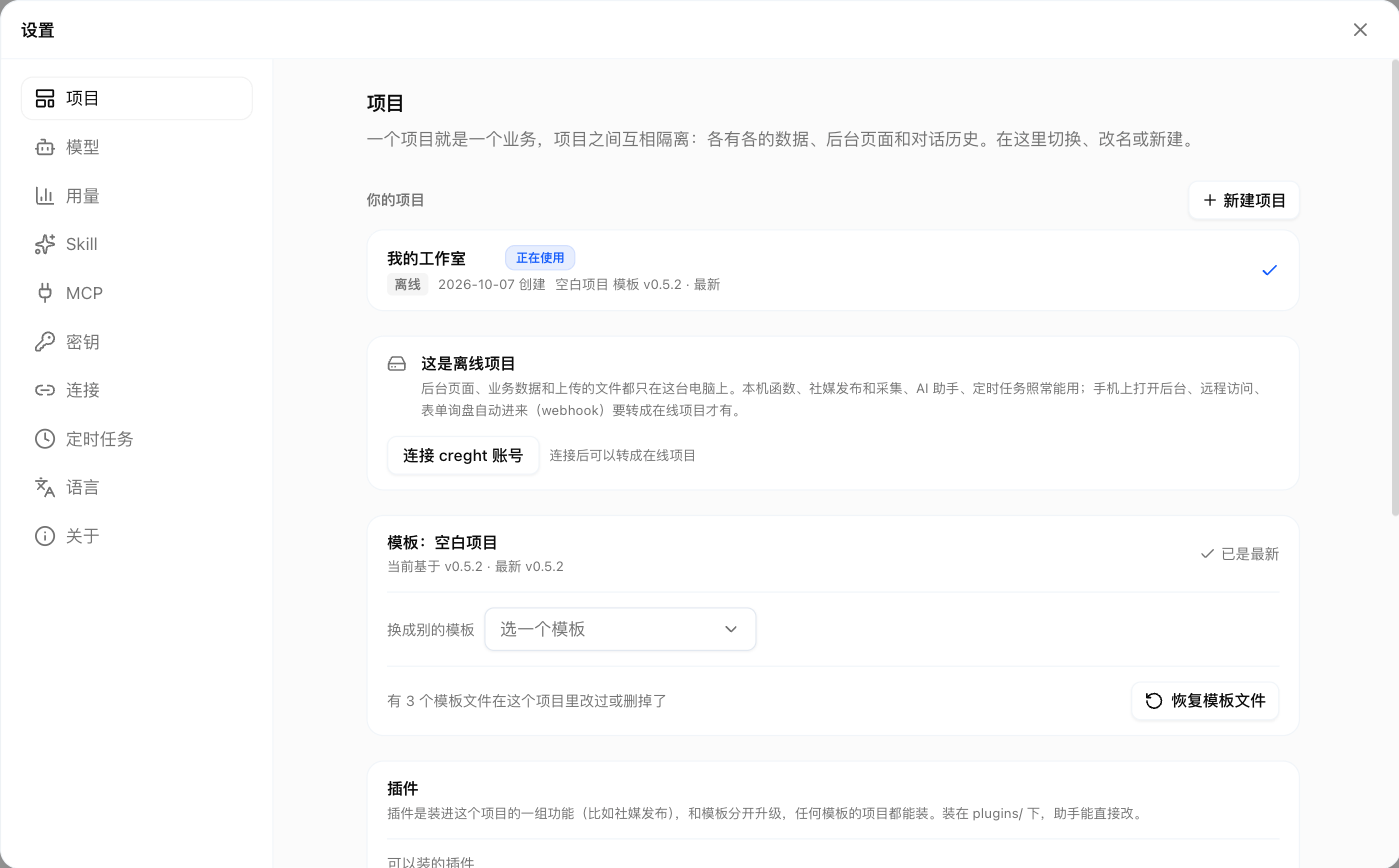
In Settings → Projects, the current project's template card shows "Upgrade to vN" and what changed in each version.
- Upgrading merges the template's changes into your project and keeps yours;
- Where both sides changed the same spot, click "Ask the assistant to resolve";
- Your
user/customizations, files you added, and table data are untouched; - If the card says to update Annulo first, the new template version needs a newer Annulo. Update Annulo, then upgrade.
If you broke a file that came with the template, use "Restore template files" and tick the ones to restore (you can undo it). You can also "Switch template" to merge another template into the project.
Any git repo can be a template: put annulo.json, pages, tables and local functions in a directory, and every semver tag (like v1.2.0) is a version; the tag message is the upgrade note users see. Layout: see the templates repo README and the API reference.