Download and install
Install Annulo, decide whether to connect creght, and create your first project.
Annulo runs on macOS 12 or later (Apple silicon and Intel) and Windows (x64 and ARM64). Pick your installer on the download page. The first time, macOS will block it: go to System Settings → Privacy & Security and click "Open Anyway". On Windows, if SmartScreen appears, click "More info → Run anyway".
Had Shuttle before? Shuttle is now Annulo: just install it, and your projects and data come along.
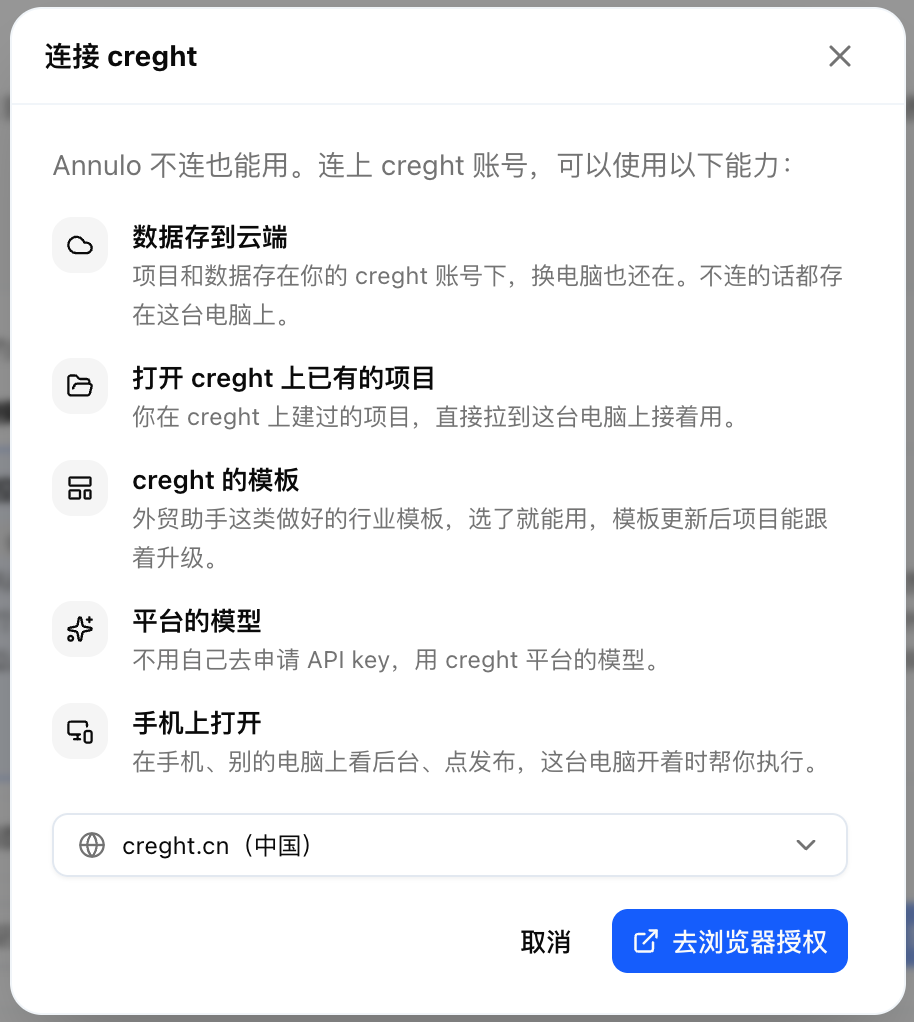
Annulo works fully without it, with your projects and data on this computer. To connect, click "Connect creght" at the bottom of the "Choose a project" page, or go to Settings → Connections. What you get is in Connect creght: cloud and phone.
No rush: you can connect any time.
In the "Choose a project" page, give it a name (a brand or business line) and pick a template:
- Blank project: a home page, a sample table and one local function, from scratch;
- Creator studio: positioning, ideas, articles, posts and stats for each platform; open source;
- Export assistant (when creght is connected): website, product data, inquiry follow-up;
- Your own git template: click "Add a git template" and enter the repo address.

One project is one business; projects keep their data, back-office pages and chat history separate. Later you can switch, rename or create projects in Settings → Projects.
In Settings → Models, add your own provider and API key, or use Claude Code / Codex already installed on this computer. With creght connected you can also use the platform's models.
Then continue with Getting started.