Buttons and schedules
Turn repeatable work into local functions that run at a click; let schedules handle the rest on time.
Work that's done the same way every time, like syncing data, checking your site or publishing, becomes a local function (local/*.ts) behind a button. Click it and it runs: no tokens, same result every time.
Local functions can use what's on this computer: business tables, network requests, keys you saved in Settings → Keys, connected MCP servers, your local browser (with your signed-in sessions), and command-line tools. Full list in the API reference.
You can also ask the assistant to run one in chat: "run the sync".
Work that needs the AI to read and think (ideas, articles, weekly reports) becomes a task (tasks/<id>.md). Click its button and a background chat does it; the button turns into "In progress · view", and the page reloads its data when it's done. The "AI requirements" next to a task hold the writing rules it always follows. Edit them freely; you can restore the default.
Settings → Schedules shows each job's last result and next run, with "Run now" and pause. A schedule can:
- run a local function on time (say, collect stats every 6 hours);
- hand a job to the assistant on time (say, the weekly report): it opens a new chat titled "Scheduled: …", and since you're not there, it won't stop to wait for your answers.
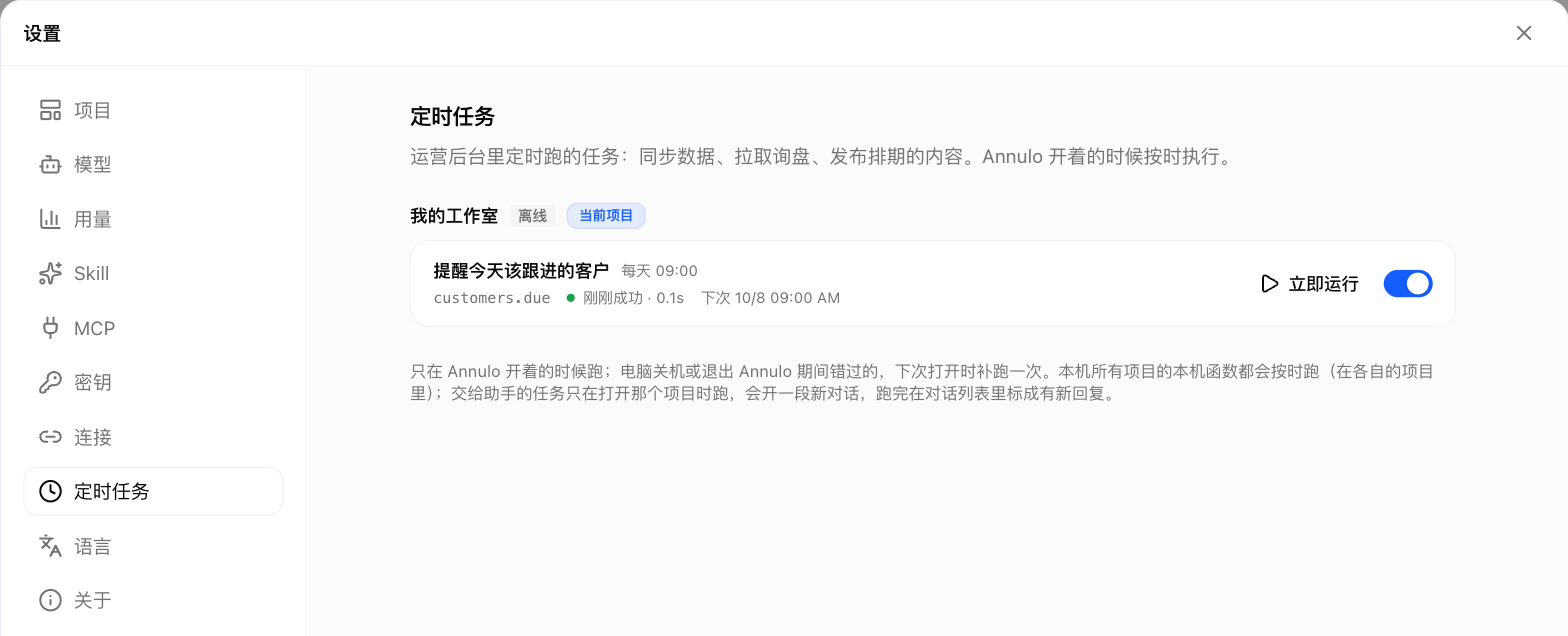
Schedules only run while Annulo is open. A run missed while the computer was off runs once the next time you open it.