Social media
X, LinkedIn, Facebook, Instagram, YouTube, Xiaohongshu, Douyin, Bilibili, Zhihu: account status, followers and engagement, collecting stats, self-tests.
The Social media page is for accounts and numbers. Posts are edited, reviewed and published in Content center under "Media versions" (see "Content center"); scheduled posts show in the Publishing calendar.
Add accounts under "Accounts → Add account". A browser window opens; log in there. The login stays on this computer; a new computer needs a new login.
| Platform | What it posts | Suggested gap | Suggested daily max |
|---|---|---|---|
| X | Posts, up to 4 images or 1 video | None | 10 (in 24 hours) |
| Posts on your personal profile, images or video | 60 minutes | 5 | |
| Posts on your profile or a Page you manage, images or video | 30 minutes | 10 | |
| Posts, images or video; without images, a text cover is made from the cover text | 60 minutes | 5 | |
| YouTube | Videos | 60 minutes | 3 |
| Xiaohongshu | Notes, images or video; without images, a text cover is made from the cover text | 2 hours | 3 |
| Douyin | Videos; Douyin reviews each one after posting | 30 minutes | 10 |
| Bilibili | Videos; Bilibili reviews each upload | 30 minutes | 10 |
| Zhihu | Column articles with images in the text, up to 3 topics | 30 minutes | 5 |
The spacing and daily counts are only suggestions; posts still go out if you exceed them, but posting too often can get throttled. Social features come from the social plugin, installed with every new project. If a notice at the top says it's missing, install social in Annulo's Settings → Projects → Plugins.
Social media in the sidebar, first tab "Accounts":
- Three numbers at the top: Accounts, New followers (30 days), Accounts needing attention (login expired or publishing problems);
- Accounts & publishing status: each account's followers (the arrow is the 30-day change), connection, latest publication, and what to do on the right: "View data", "Fix publishing", "Sign in again";
- Recent posts: the last 5 posts with views, likes and comments; "View post" opens it on the platform.
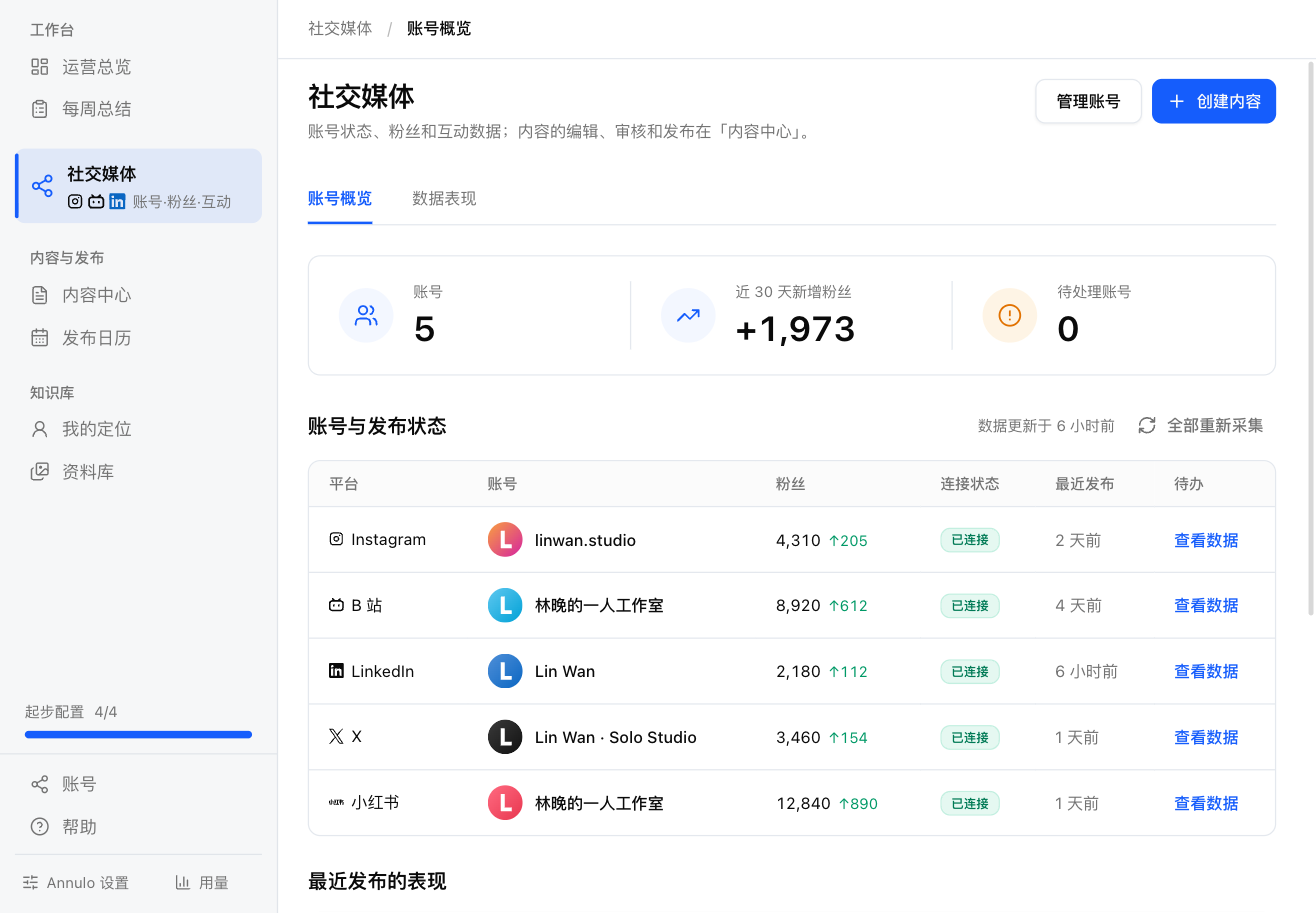
At the top right, "Manage accounts" goes to Accounts and "Create content" starts a new article in Content center.
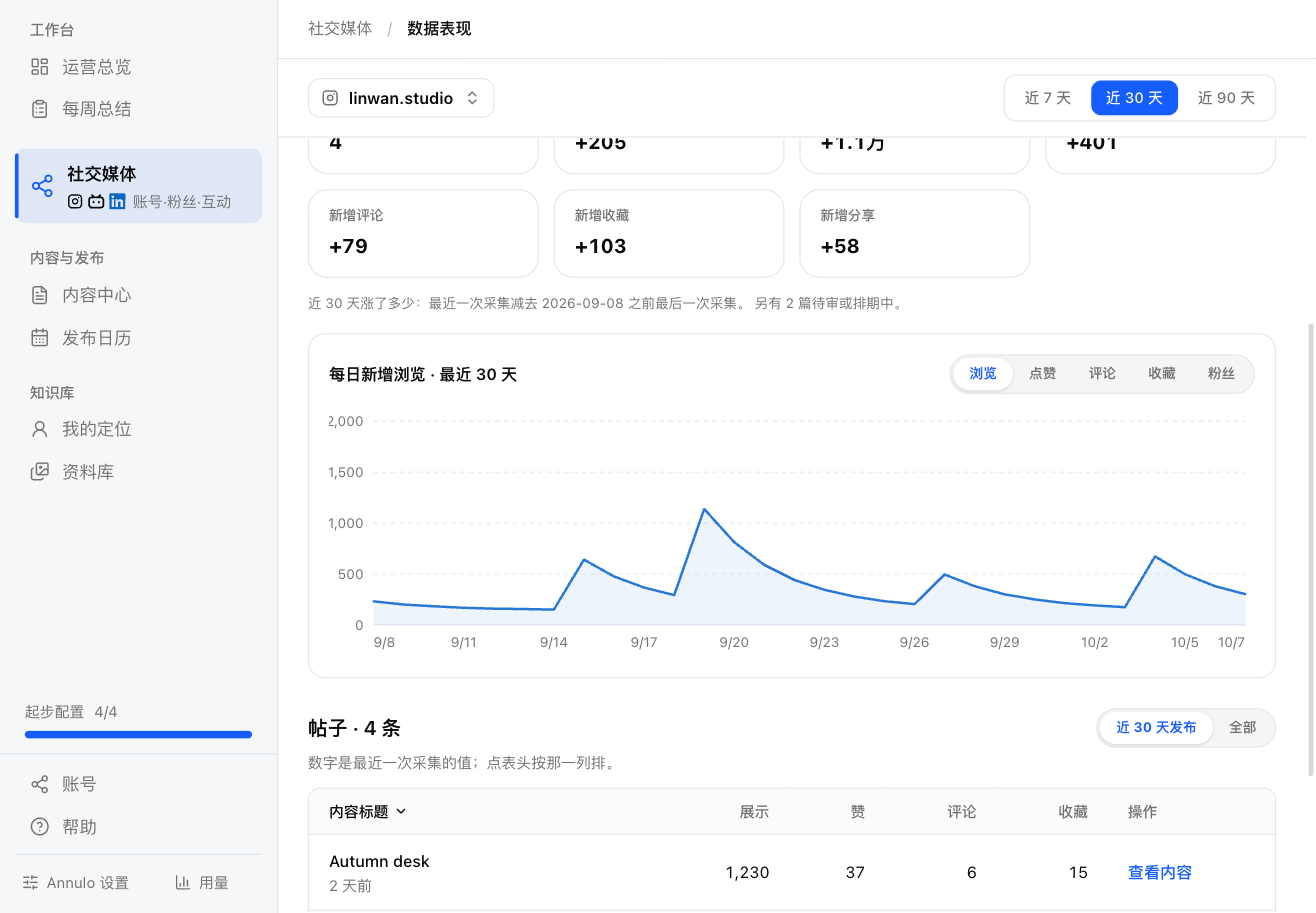
The second tab, "Performance". Pick an account and a period at the top (last 7 / 30 / 90 days):
- Account card: login status, followers, last collection, "Profile" and "Collect now", and the last self-test result;
- Posts published in the period, new followers and engagement, and a daily chart (it needs at least two days of collection);
- "Posts" list: each post's numbers; click a column header to sort by it. Show only posts from the period, or all. Click a title to open its version in Content center.
Followers and every post's numbers are collected every 6 hours (Annulo must be open). Posts you made directly on the platform are picked up too. For the latest numbers: "Collect now" on the account card, or "Collect all again" on the Accounts tab (one account at a time). Collecting runs a browser for a while; doing it too often can get you rate-limited.
When a platform changes its pages, posting or collecting can break. A self-test runs every day at 08:30: it walks through login, reading data, opening the composer and finding the post button, without posting.
- The account card shows the last result; click "Self-test" to run one now (Xiaohongshu cards don't have a self-test);
- When it fails, the card says which step, and "Social publishing needs repair" appears in Today's work on the overview. Click "Have the assistant fix it"; the assistant updates that platform's posting script from the failure screenshot. Then click "Test again";
- Stuck on "Publishing" but nothing is running (say, Annulo was closed mid-post): click "Mark as failed" and publish again. A retry first looks for the post on the platform, so one that already went out isn't posted twice.
An account signed in on another computer shows "Logged in on another computer"; that computer does its publishing and collecting. To move it here, click "Log in on this computer".