Settings
The Annulo settings this template uses: models, plugins, schedules, template upgrades.
Settings live in Annulo, not in the back-office pages: "Annulo settings" at the bottom left of the back office opens them, and "Usage" shows how many tokens the models used. Annulo's own help ("Settings at a glance" on the Annulo website) covers every item; this article covers only what Creator studio uses.
Settings → Models offers three kinds, and you can switch anytime at the bottom of the chat box:
- Your own provider: pick a provider, enter an API key and tick the models to use. The key stays on this computer;
- Local agent: Claude Code / Codex installed on this computer;
- creght platform models: available when creght is connected, billed in AI credits.
Suggesting topics, writing and revising articles, writing social versions and the weekly summary all use the model chosen here.
Creator studio needs no extra keys: social accounts log in with a browser, and the login stays on this computer. If the assistant connects another service that needs a key, it asks you to add it in Settings → Keys. Don't paste keys into the chat.
The Social media features come from the social plugin, installed with every new project. Install and upgrade it in Settings → Projects → Plugins; it upgrades separately from the template.
Settings → Schedules lists what the back office runs by itself. Each shows its last result, and has "Run now" and pause:
| Task | How often |
|---|---|
| Write the weekly summary (handed to the assistant) | 7 days |
| Publish social posts that are due | 5–15 minutes per platform |
| Collect social stats | 6 hours per platform |
| Social self-test | Daily at 08:30 |
A platform's tasks do nothing when you have no account on it. They only run while Annulo is open; anything missed while the computer was off or Annulo was closed runs once when you open it again.
In Settings → Projects, the current project's template card shows "Upgrade to vN" and what changed in each version.
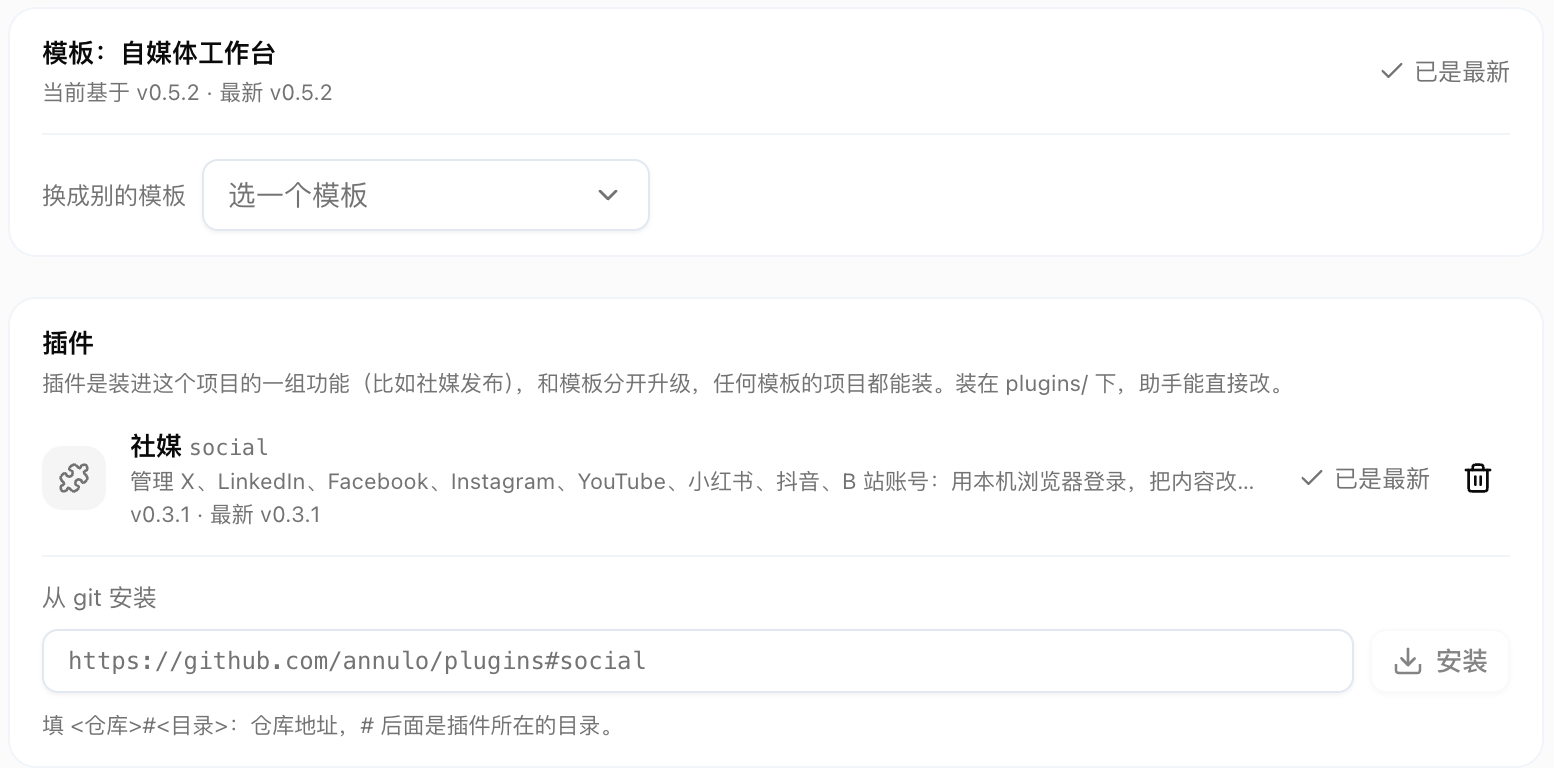
- Upgrading merges the template's changes into your project and keeps your own edits; where both sides changed the same spot, click "Ask the assistant to resolve";
- Your edited "AI instructions" live in the project's
user/folder; upgrades don't overwrite them; - If the card says to update Annulo first, this template version needs a newer Annulo. Update Annulo, then upgrade;
- If you broke a file that came with the template, use "Restore template files" and tick the ones to restore.