Accounts
Add and remove social accounts, log in, self-test publishing; logins stay on this computer.
"Accounts" at the bottom of the sidebar connects the social accounts you run. Adding, logging in and publishing self-tests happen here; the numbers are under Social media.
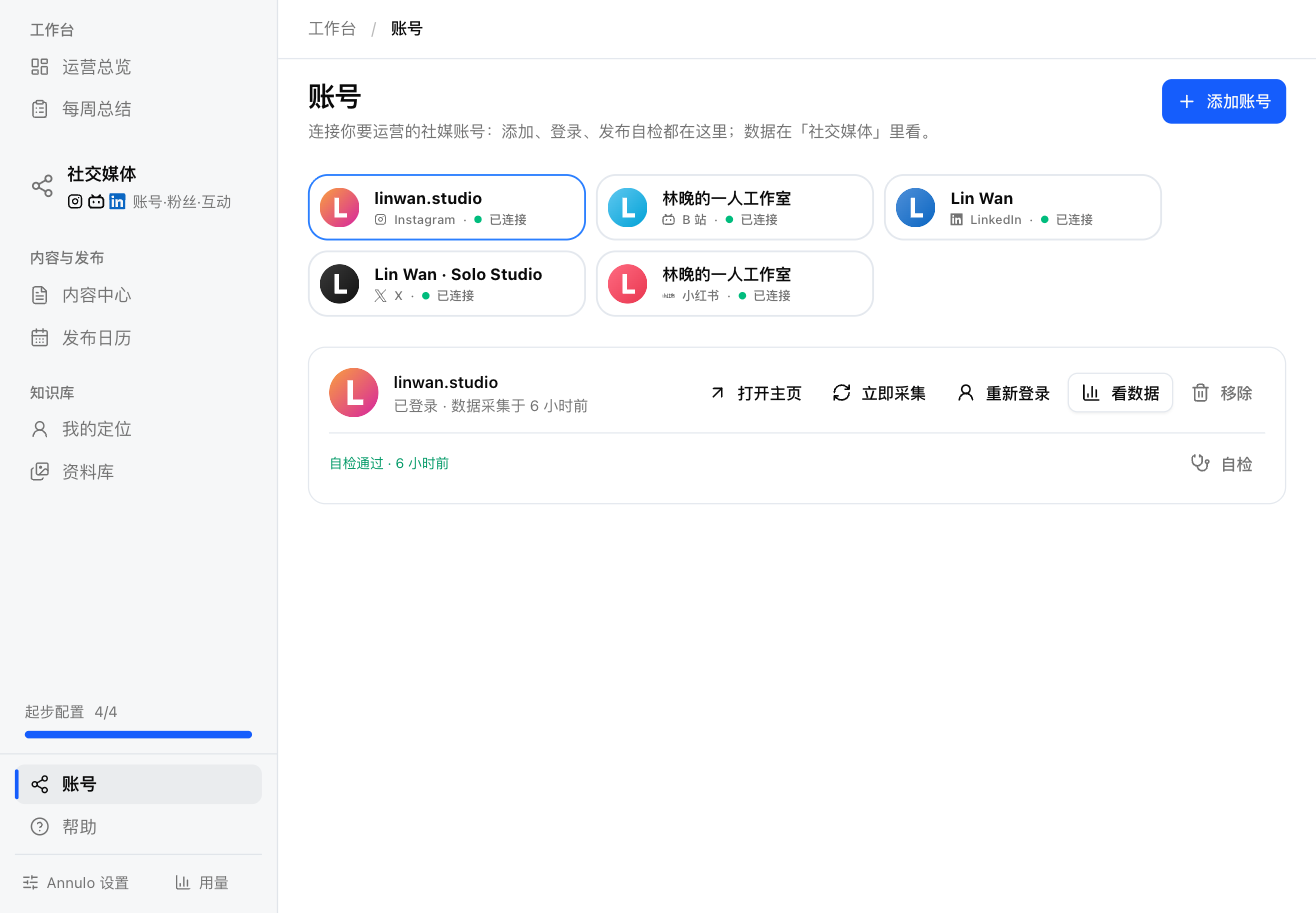
Each account has a small card at the top with its platform and status (Connected, Login expired, Failed, Logged in on another computer…). Click one to see its details below.
"Add account", then pick a platform: X, LinkedIn, Facebook, Instagram, YouTube, Xiaohongshu, Douyin, Bilibili, Zhihu. Click "Log in to …" and a browser window opens; log in there (Douyin, Bilibili and Zhihu use a QR code in their app), and the account is added.
- The login stays on this computer and isn't uploaded;
- LinkedIn supports personal profiles for now; on Facebook you can add your profile and the Pages you manage.
- Login status and last collection;
- "Profile": opens the account's page on the platform in its own browser;
- "Collect now": collects followers and post numbers now;
- "Sign in again": when the login expired, or after switching computers or clearing browser data. For an account logged in on another computer it says "Log in on this computer";
- "View data": goes to Social media → Performance;
- Publishing self-tests and failed posts: see "Social media".
If the account is added but its platform isn't set up in this project yet, it shows "Not set up". Click "Set up … with the assistant" (the platform name is in the button) to have the assistant add the platform.
"Remove", then "Remove" again to confirm. You just stop running it here; the account itself is unaffected and can be added back later.