Overview and weekly summary
The first page you see: key numbers, today's work and the latest weekly summary.
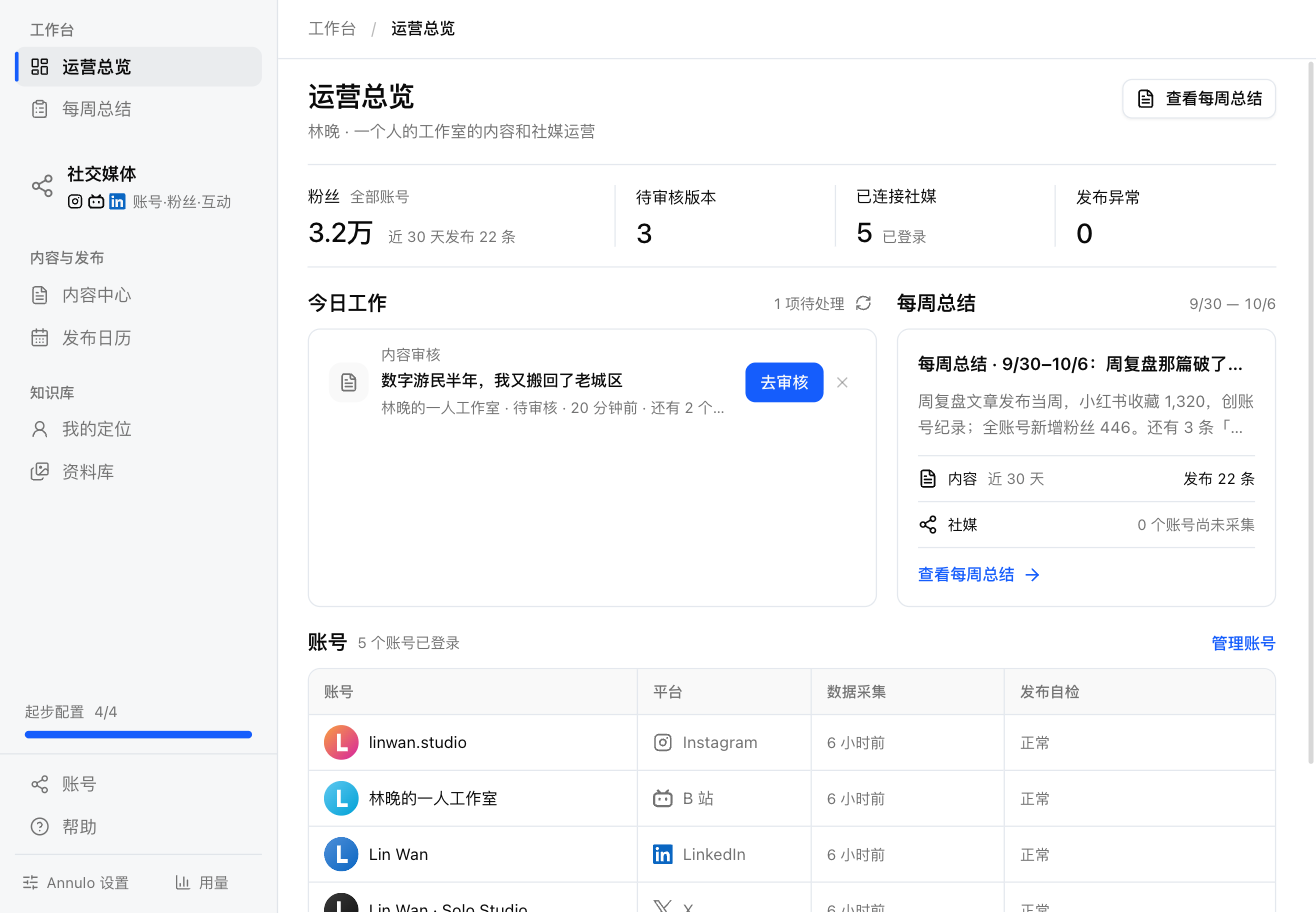
Operations overview
Workspace → Operations overview in the sidebar, from top to bottom:
- Four numbers: Followers (the total across accounts from the latest collection, plus how many posts went out in the last 30 days), Versions to review, Social accounts (signed in), Publishing issues (accounts whose publishing or self-test failed; click it to handle them on the Accounts page). Click one to go there;
- Today's work: what needs you now: social posts to review ("Review"), social publishing that needs repair ("Have the assistant fix it"), this week's summary not written yet ("Write now"). Click "×" to dismiss one; it comes back if the number grows;
- Weekly summary: the title and summary of the newest weekly summary; "View weekly summary" opens it (so does "View weekly summary" at the top right);
- Accounts: each account's platform, data collection time and publishing check (Healthy, Not checked, Publishing issue, Login expired). Click a name to go to Accounts; "Manage accounts" goes there too;
- More operations data (click to expand): versions to review, and topics (when there are none, "Suggest topics" is right there).
Weekly summary
Workspace → Weekly summary in the sidebar. Every 7 days a schedule hands the summary to the assistant: a local function gives it this period's followers, engagement and post counts for each account; it compares them with the last summary, writes a conclusion, the body and suggestions for next week, and saves it here. The overview shows the latest one.
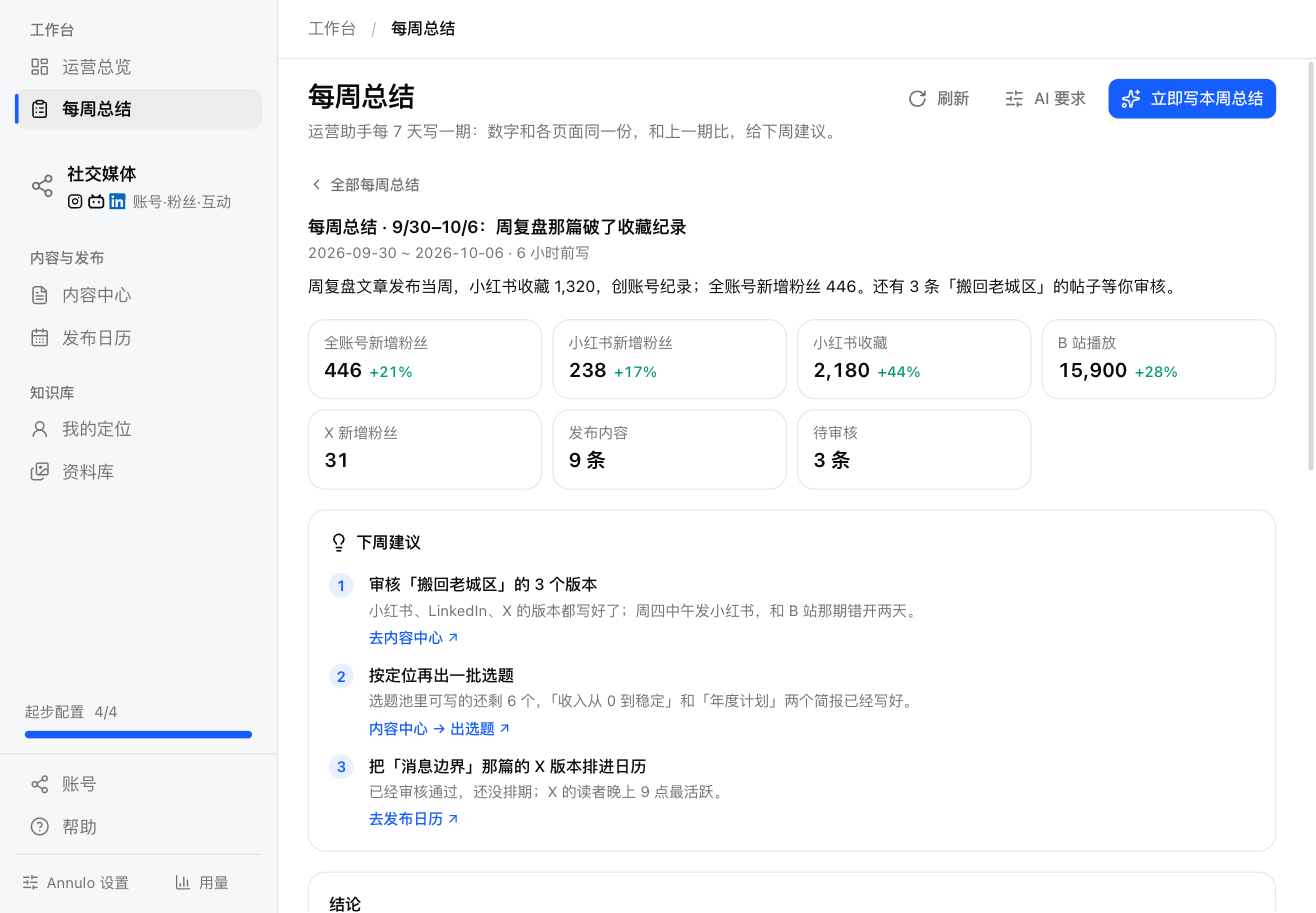
- Write this week's summary: have the assistant write one now, same as the weekly one; it usually takes a few minutes. While the button shows "In progress · View progress", click it to watch each step;
- AI instructions: the assistant follows these every time. Change what to focus on or the format here, and the next summary follows the new version; "Restore default" undoes your edits;
- See how it was written: opens the chat that wrote this summary; "All weekly summaries" goes back to the list;
- The numbers come from the same stats as the pages, not from the assistant's own math. Each account is reported separately: platforms count views and likes differently, so they're never added up;
- Missing data is reported as missing: failed collections and daily data that hasn't started recording yet are stated as such.